Back to Stitching & progress
Make the chart easier to see
Use zoom, colors, symbols, and the thread list to follow your place.
Steps
- Open your stitching project. Use the zoom slider beneath the chart to make the squares larger or see more of the design. Choose the percentage button to fit the chart to the screen.

Use the slider to zoom, or select the percentage to fit the chart. - Choose Layers beside the chart. Use the eye controls next to Guides and Symbols to show or hide them. Guides add heavier lines to help you count; symbols identify the threads in the chart.
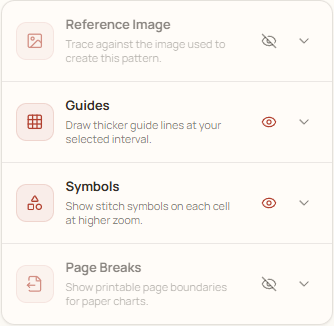
In Layers, use the eye icons to show or hide guides and symbols. - Open the small arrow beside Guides or Symbols to adjust its settings. For example, choose the guide spacing or how symbols appear. If symbols are not visible, zoom in until they appear.
- Choose Progress to return to Color progress. Select a thread in the list to focus on that color on the chart; select it again or choose Clear to remove the filter. The numbers show completed and total stitches for each color.