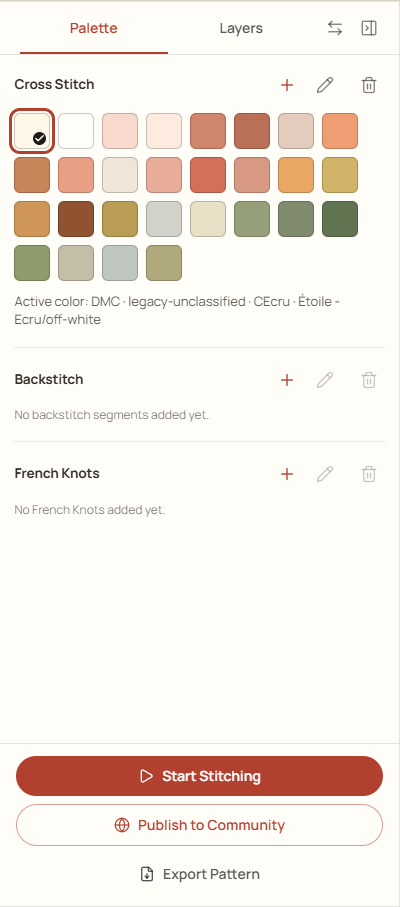
Use the Palette to choose a drawing color and manage the threads in your chart.
Steps
Open Palette beside the chart. Under Cross Stitch, select a swatch or thread row. The active color is shown in the panel.
Choose Draw and click a square to use that color. To use a color already on the chart, choose Eyedropper and click the stitch.
To add another thread, choose Add Color (+) in the Cross Stitch section. Find and select a thread in the picker, then confirm your choice.
To replace a color throughout the chart, select it and choose Edit Color. Pick its replacement and save the change. Check the chart and thread list afterward.
Example Palette: choose a swatch, or use the icons beside Cross Stitch.
Before removing a color
Remove Color removes that thread and its matching cross stitches from the chart. Read the confirmation and affected stitch count first. Use Undo if you removed it by mistake; save only after checking the result.
Separate lists for special stitches
Backstitch and French Knots have their own color sections and Add, Edit, and Remove controls. Changing a cross-stitch color does not automatically change a separate backstitch or knot color.