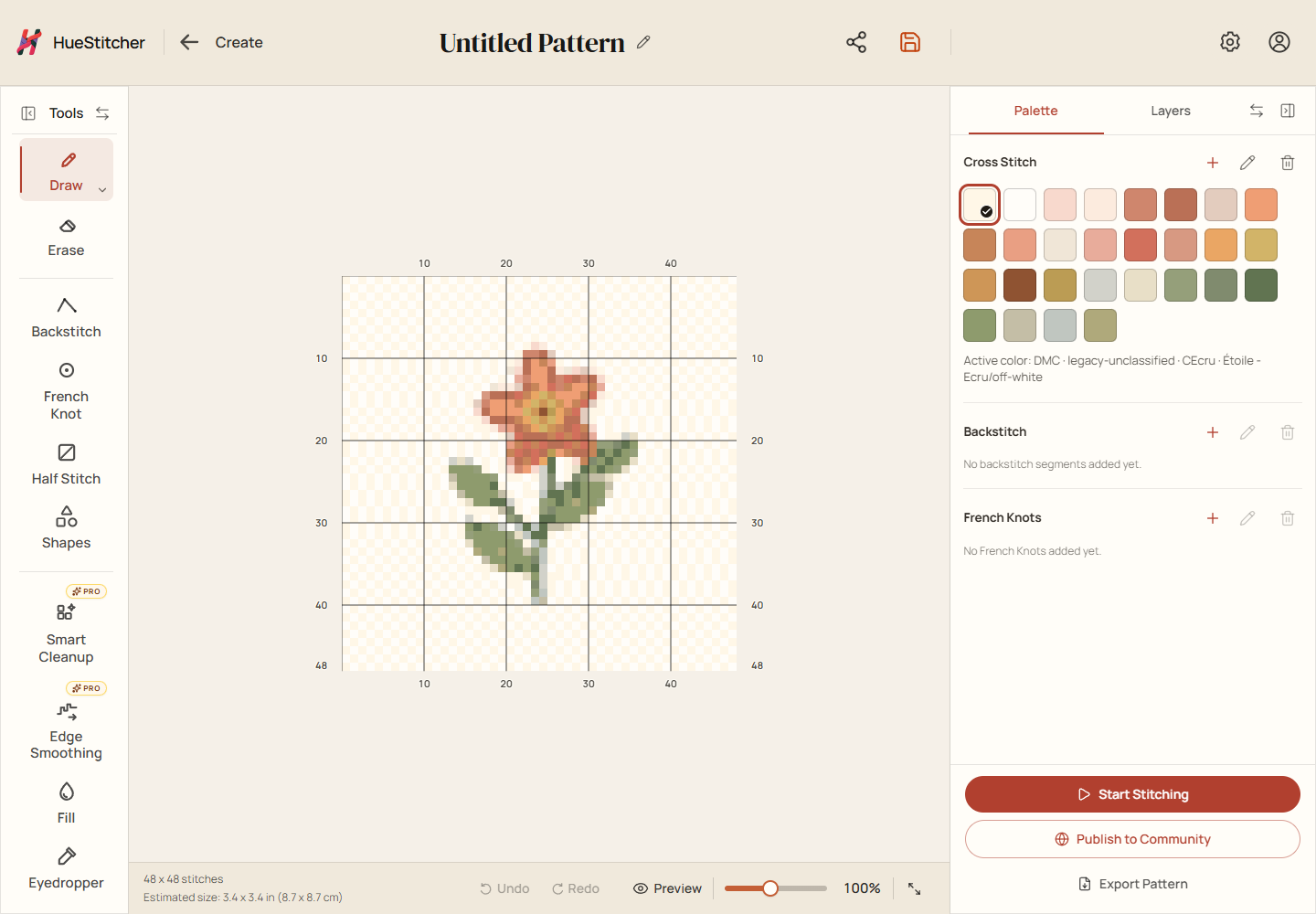
Learn where to find your chart, tools, thread colors, save control, and next steps.
Steps
Open a saved pattern from Library, or choose Open in editor after creating one.
The large grid is your chart. Each square is a place for a stitch; the colors and symbols show which thread goes there.
Find the Tools panel beside the chart. Choose a tool, then use it on the chart. The Palette panel lists your thread colors; select one before drawing.
Use the disk-shaped Save button near the pattern name to save your changes. Check the save status before leaving. Choose Start Stitching to track progress on screen, or Export Pattern to make a printable PDF.
Example editor: tools are on the left, your chart is in the middle, and the palette is on the right. Small screens can be arranged differently.
See a closer view
Use the zoom controls to make the squares larger or smaller. Choose Pan and drag the chart to move your view; this does not move your stitches. Preview shows how the design will look when stitched.
Find a hidden panel
Tools and the Palette or Layers panel can be collapsed. Reopen the panel at the edge of the workspace. On smaller screens the controls may be arranged differently.